
RD Web Access
Introduction
Section titled “Introduction”This is a brief article about configuring RD Web Access for your home lab
Pros and Cons
Section titled “Pros and Cons”If you don’t have MSDN this can cost a few hundred for a Windows License then around £25 for a 5 User TSCAL
Free if you have access to an MSDN license or happy with the 90/180 trials to learn
What will you need
Section titled “What will you need”- About an hour maybe two depending on the speed of your environment
- At least 2 VMs and a DC as a minimum
- The same amount of spare IPs to VMs
- Access to your router/firewall
- Ideally a trust certificate
- 1 public IP or a NAT from a load balancer
Use Cases
Section titled “Use Cases”The use cases for this type of technology are for accessing your environment over standard SSL ports. This helps with locked down company environments as it doesn’t rely on port 3389 for RDP
Solutions
Section titled “Solutions”Firstly I shall start by saying I have configured this as bare bones to limit the amount of resources I use on my environment and also what works for me. If you are studying for your MCSA I would suggest you build this out and include a RD Web Access server, RD Virtualization Host and a RD Connection Broker. I used my Gateway as a session broker as most my traffic would be coming from here.
Firstly start by getting your two new VMs up and running and ready to join to your domain (sys prepped, WSUS etc)
From here use any naming convention you want but I used
- Corprdsgw01.domain.com - This will be your RD Gateway
- Corprdssh011.domain.com - This will be where your session gets dropped onto
You will also need another machine for licensing, I usually opt for this on my secondary DC
Please note I will put notes in for alternative config if only using two machines. I couldn’t do this as I already had an environment on this domain
I am also to happy to explain I do the configuration this way as it allows you to install .NET 3.5 if you are still using the old fat clients for your hyper-visors
Configuring the RD Gateway server
Section titled “Configuring the RD Gateway server”Start by logging into the Corprdsgw01 machine, within server manager select add roles
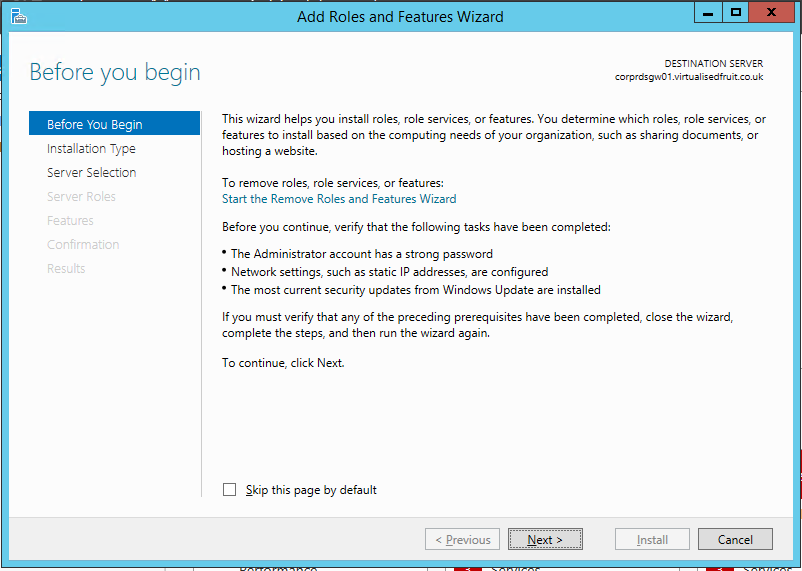
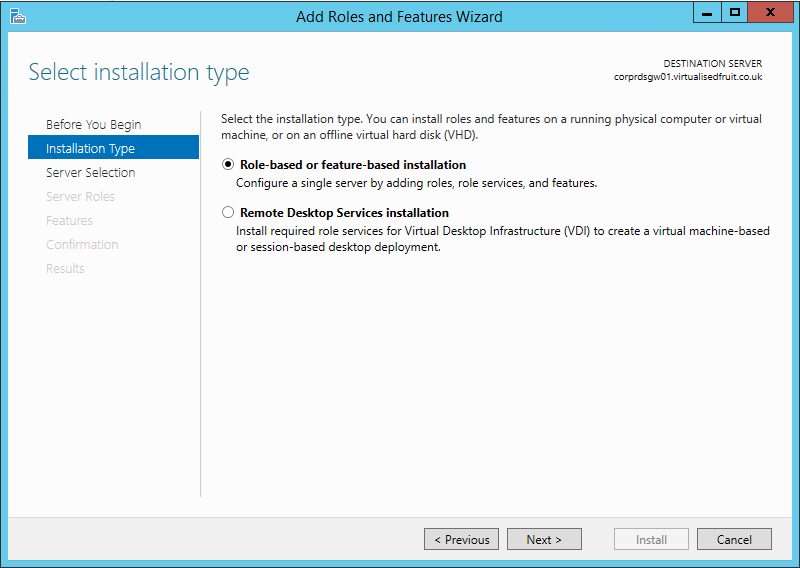
Press next and select Role-Based or Feature-based installation
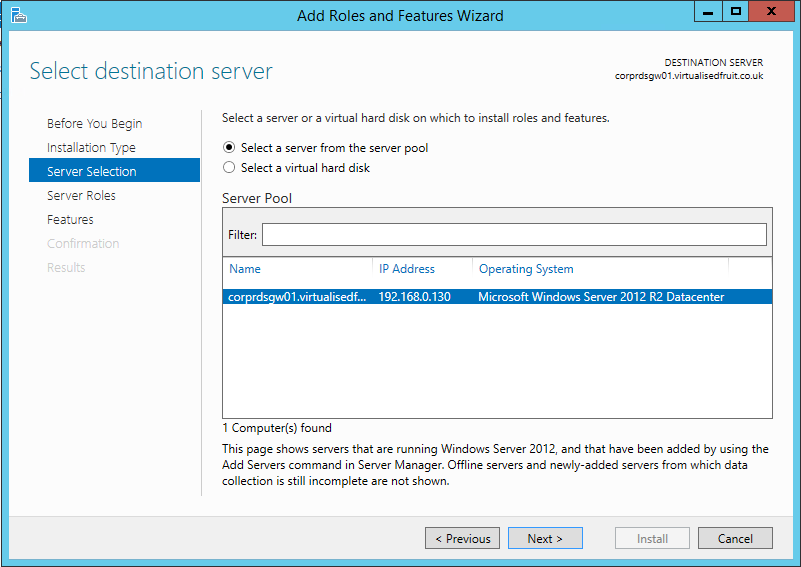
Ensure you server is selected as you may already have these in a group
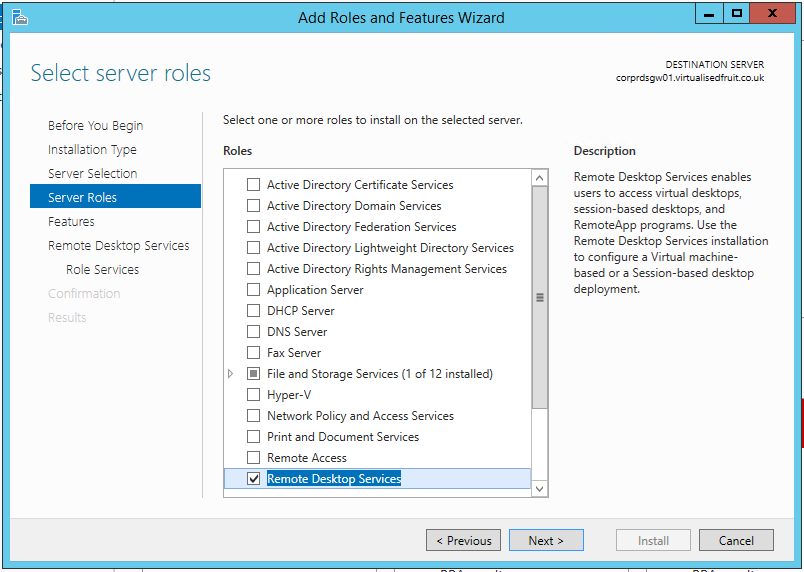
Within this window select ‘Remote Desktop Services’
This following window allows you to install .NET 3.5 for older applications and web browsers
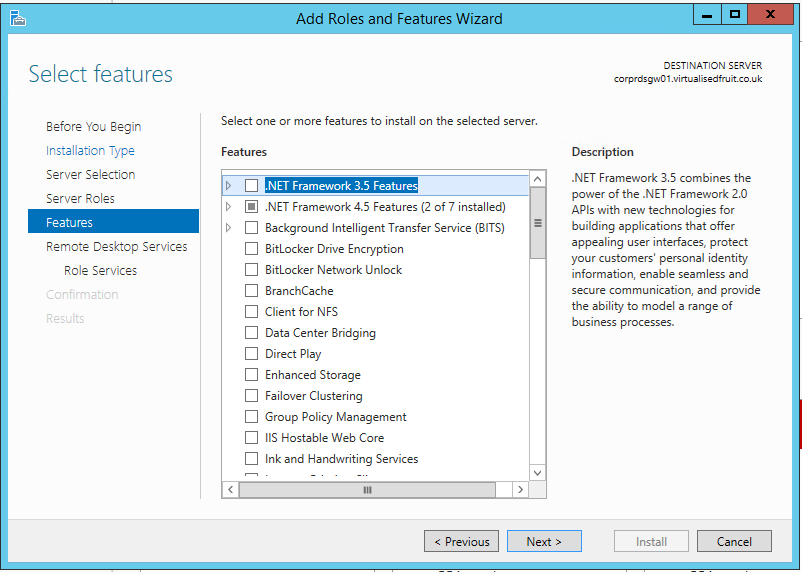
Select next on this window
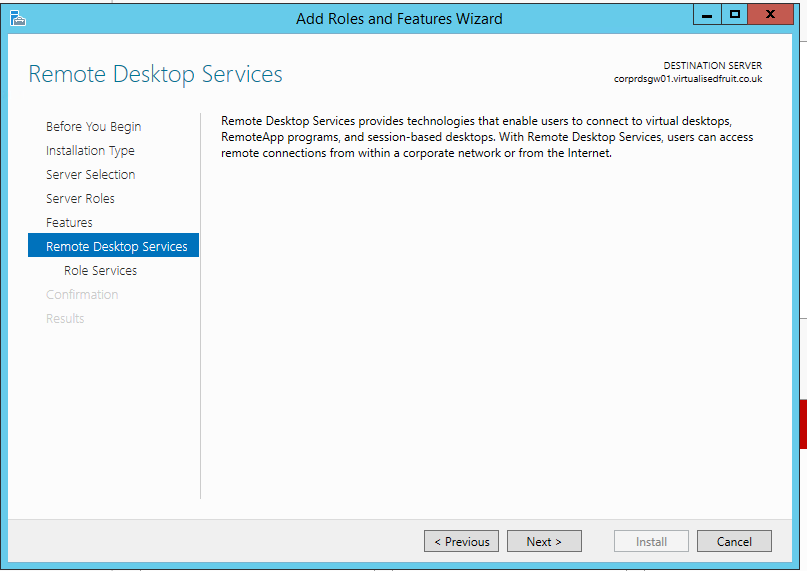
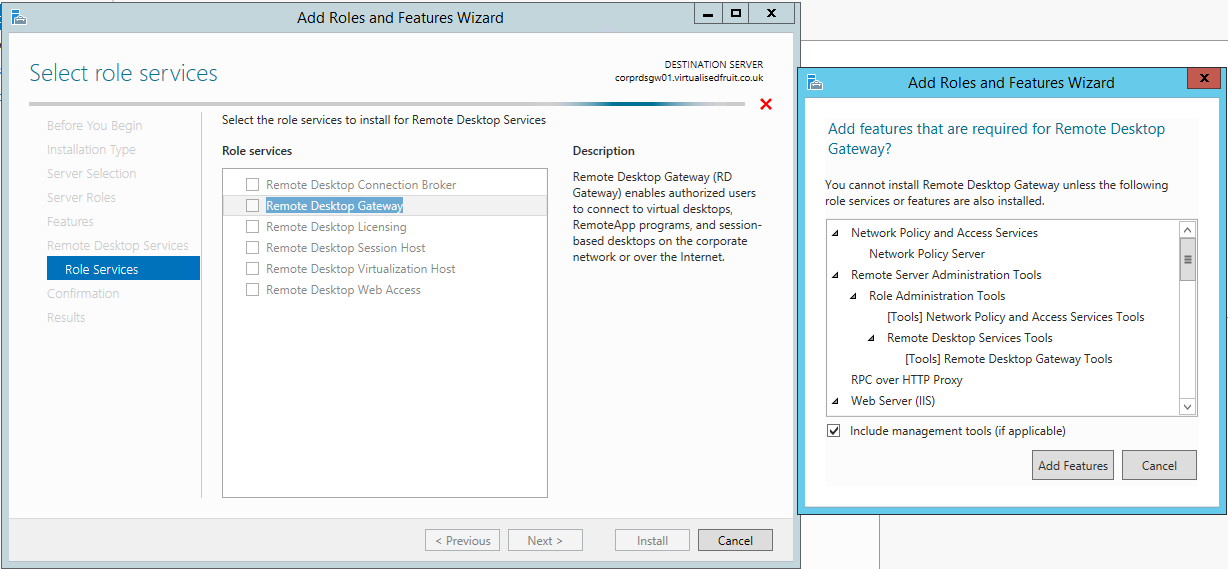
Within this window select Remote Desktop Gateway Also select Remote Desktop Broker and Web Access if you only plan to have two machines
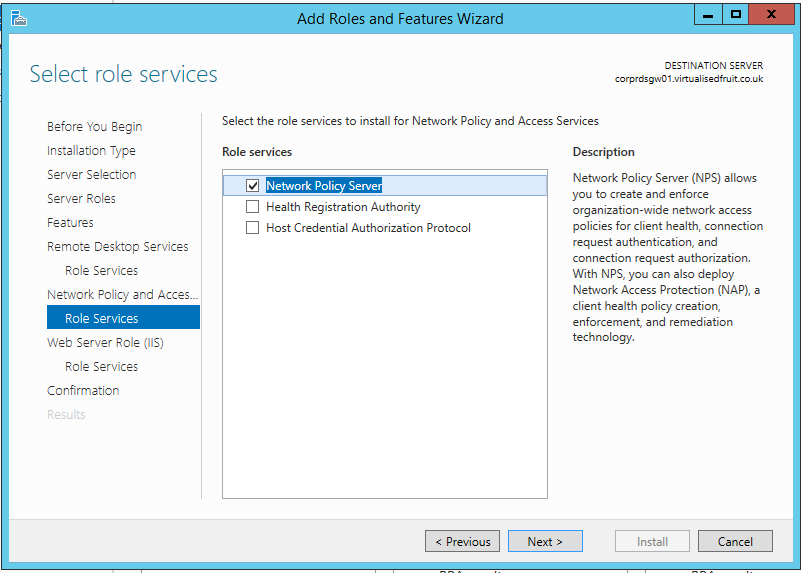
The system will now guide you through the NPS server roles. Keep these at the default for now but can help you lock down access going forward
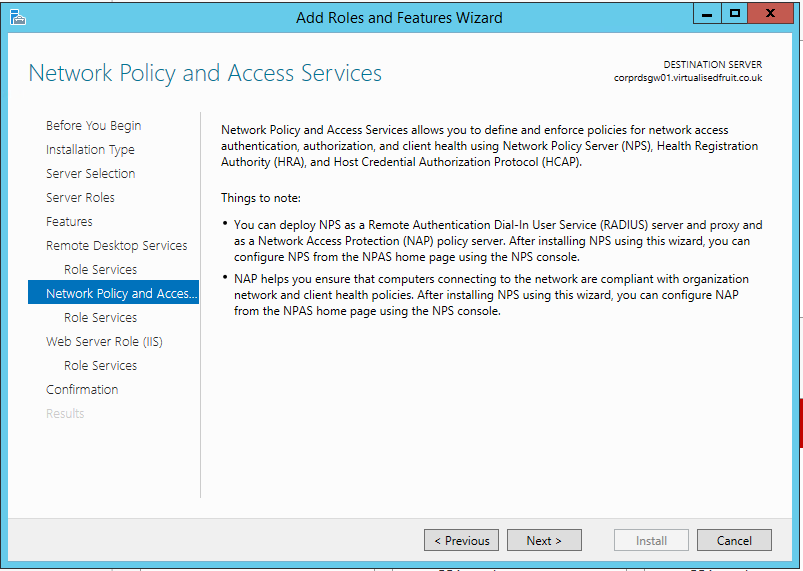
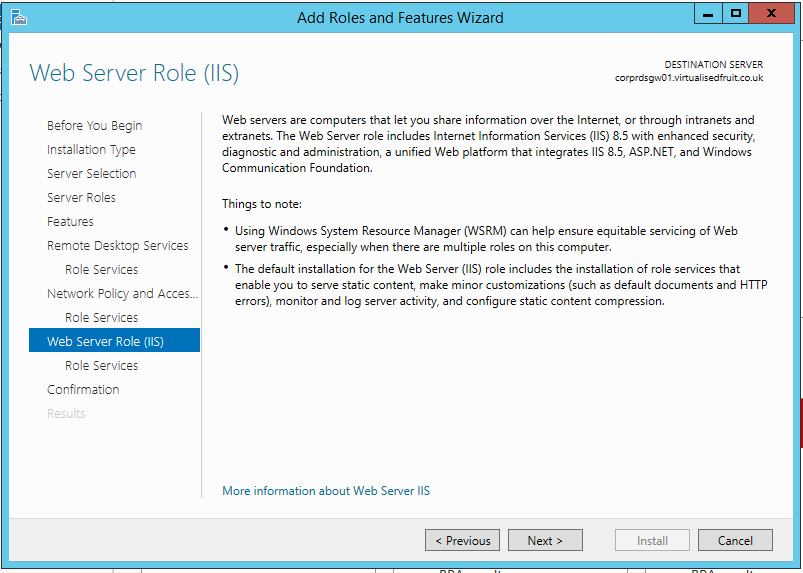
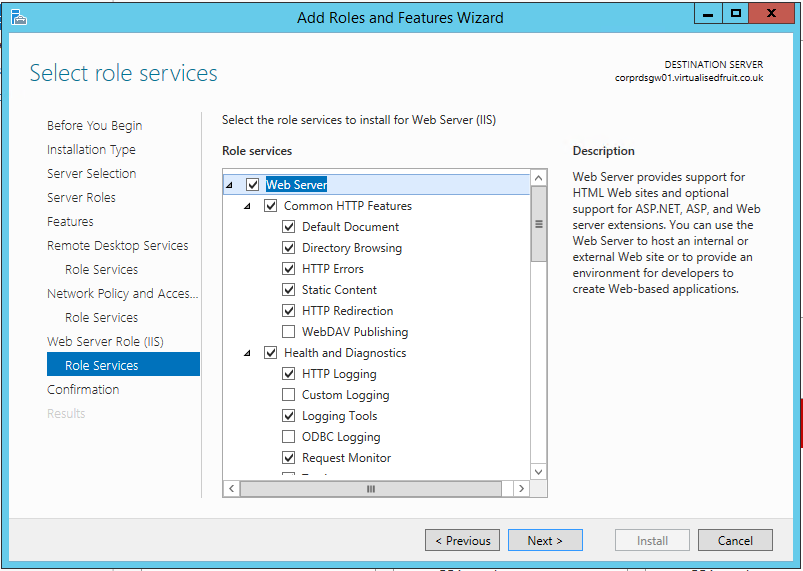
Again follow the standard settings for IIS
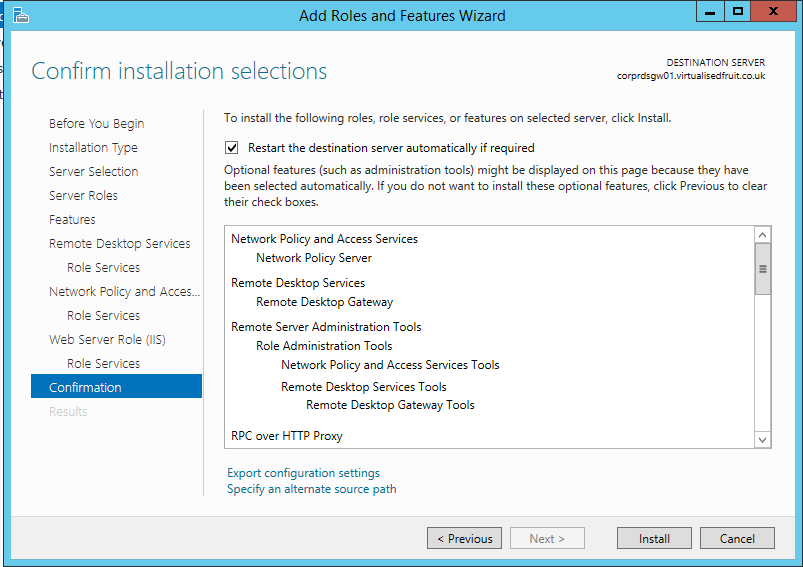
Finally confirm the installation, once complete reboot the VM
Configuring the RD Session Host
Section titled “Configuring the RD Session Host”Follow all the above sections for your RDS host but on this screen select Remote Desktop Session Host
Configuring the RD Session Host
Section titled “Configuring the RD Session Host”Follow all the above sections for your License server but on this screen select Remote Desktop Licensing
Configuring the services to talk
Section titled “Configuring the services to talk”Firstly I would suggest you ensure all the VMs have been rebooted. When logging in ensure you use a domain admin account for the next steps
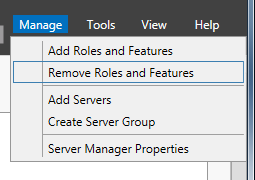
Firstly start by clicking manage in the server manager and select Create Server Group
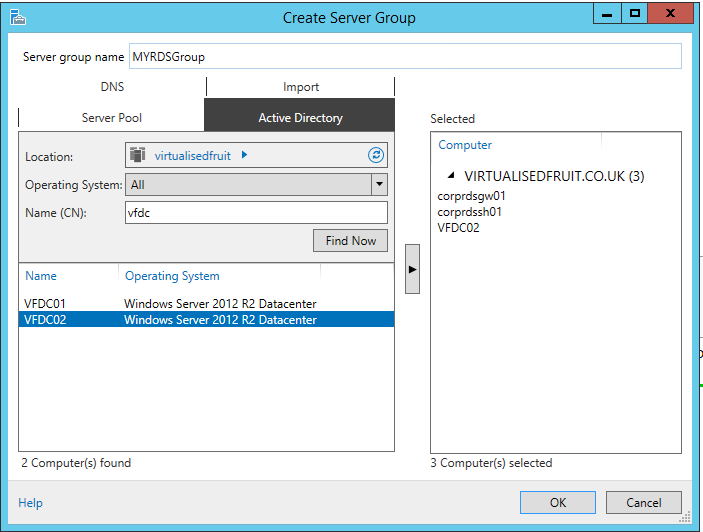
Within this window add your RDS boxes and license server
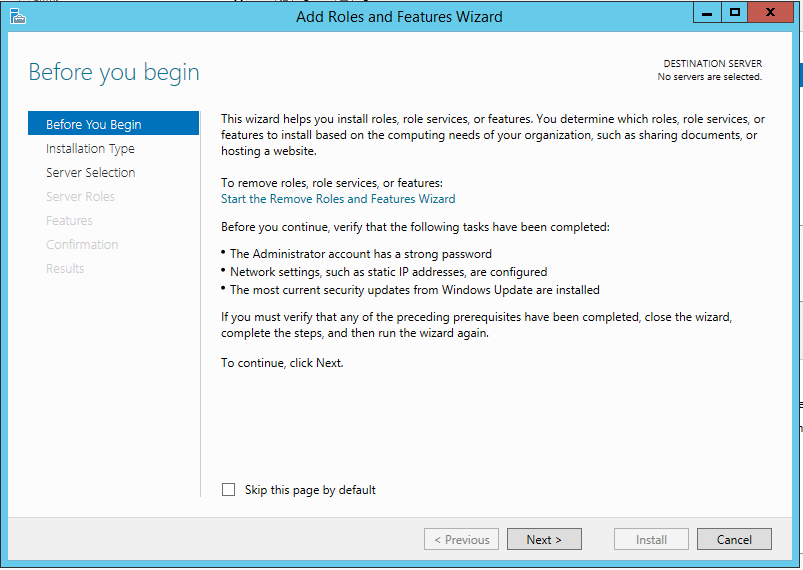
Click on your server group and then select Add Roles and Features
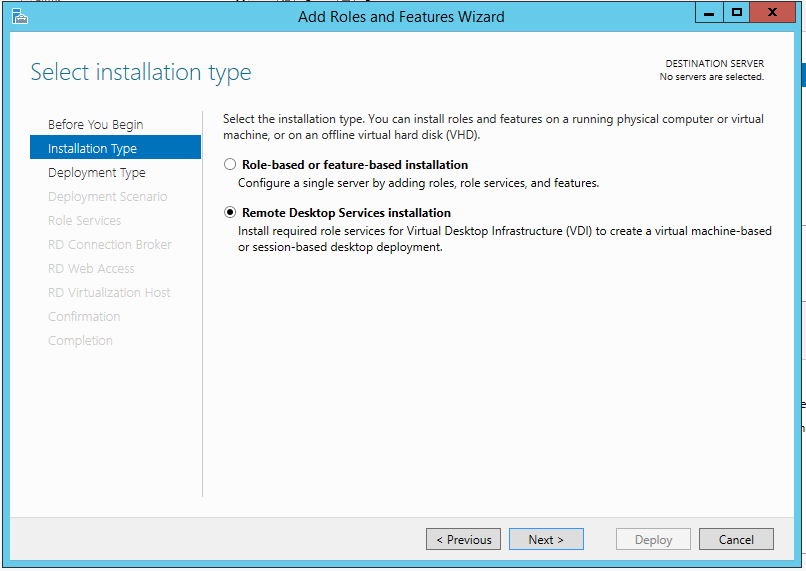
This time ensure you have selected Remote Desktop Services Installation
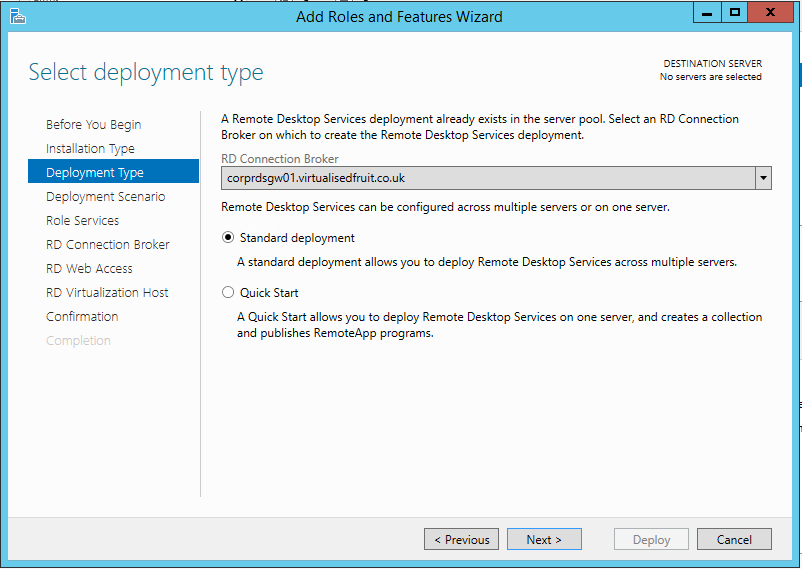
Select standard deployment
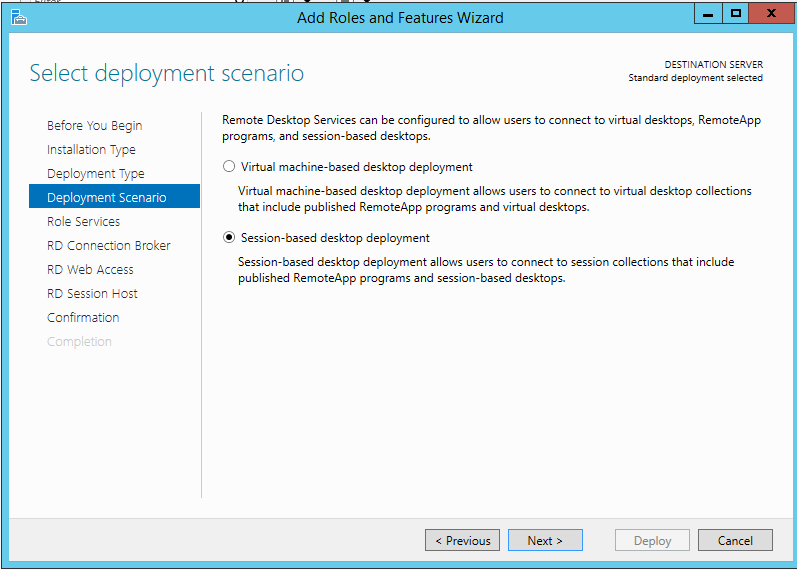
On this following screen select Session-Based desktop deployment and select next on the screen after
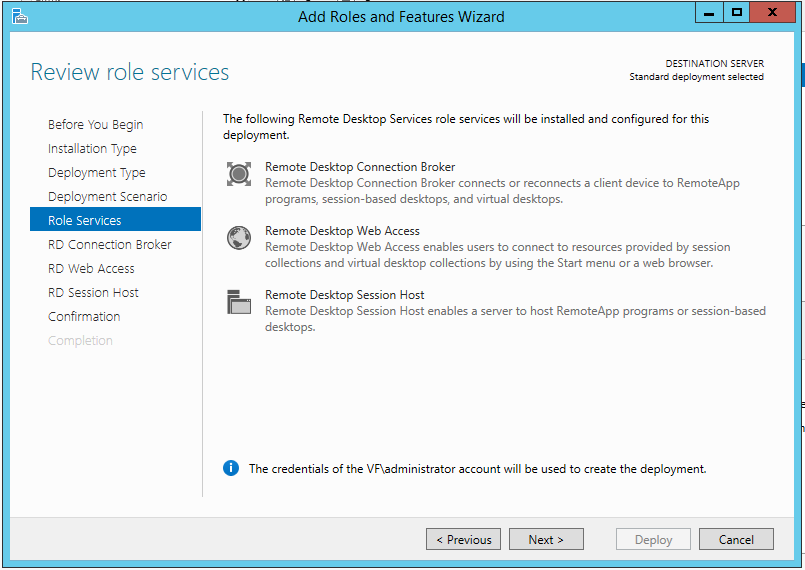
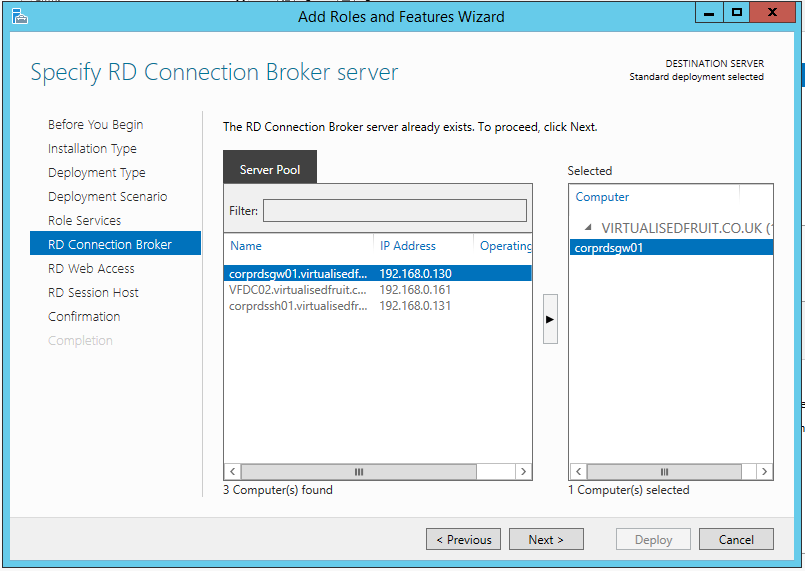
In the next screen select your session broker. If in the 2 VM scenario this should be your gateway server
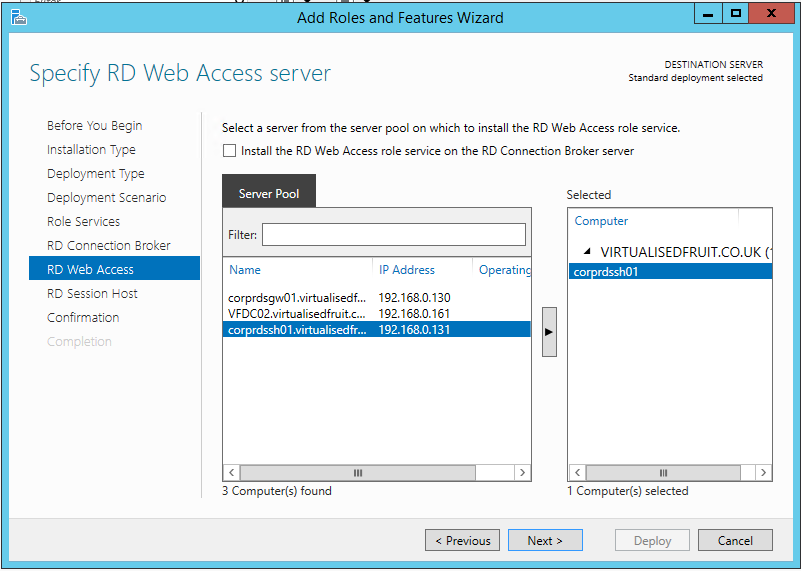
In the next step as above if in a two VM scenario select your gateway server. If you didnt do it previously select install RD Web Access Role Image is for illustrative purposes
Finally select the confirmation screen and allow the restarts
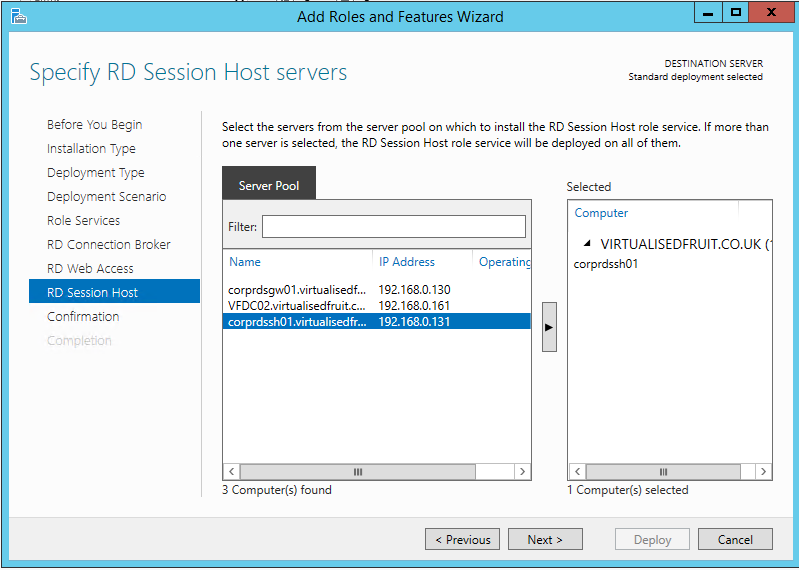
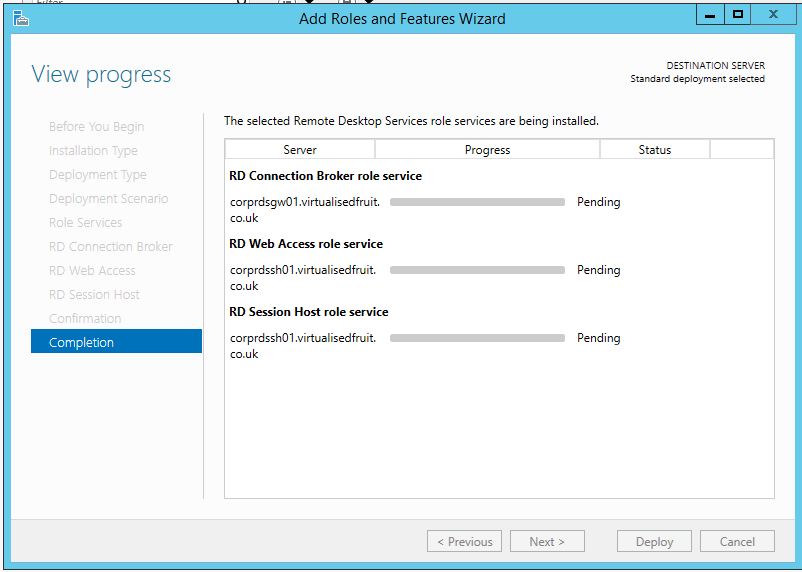
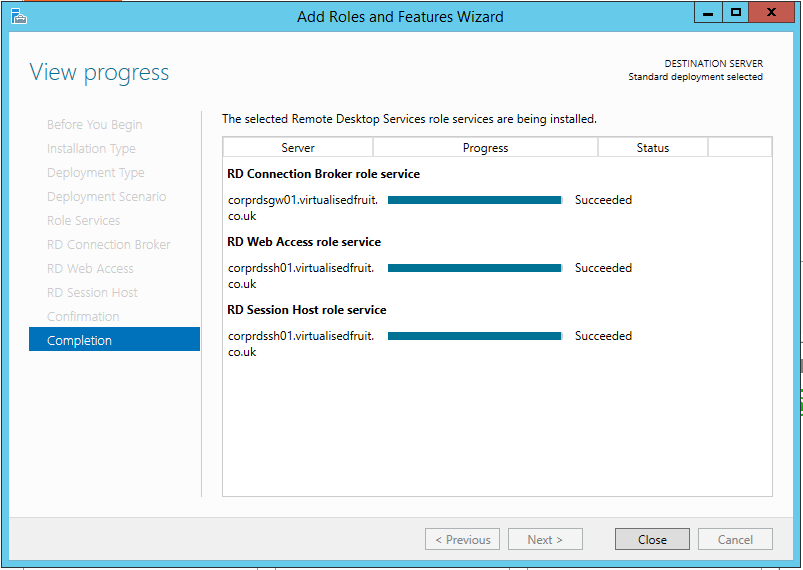
Once this completes on the server you configured your group select the following option

If you have done things correctly you should now see the following screen, Press the RD Gateway + icon
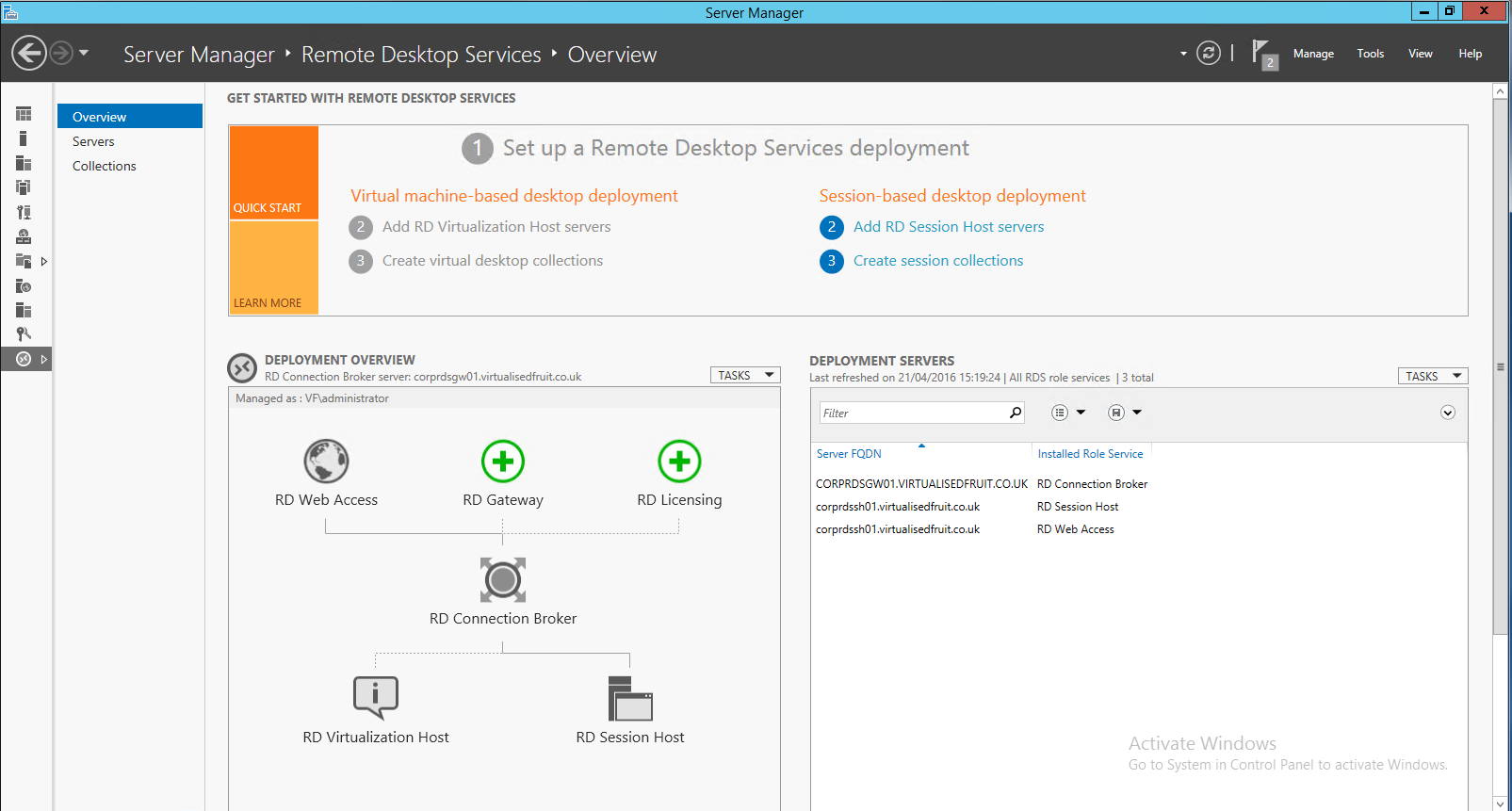
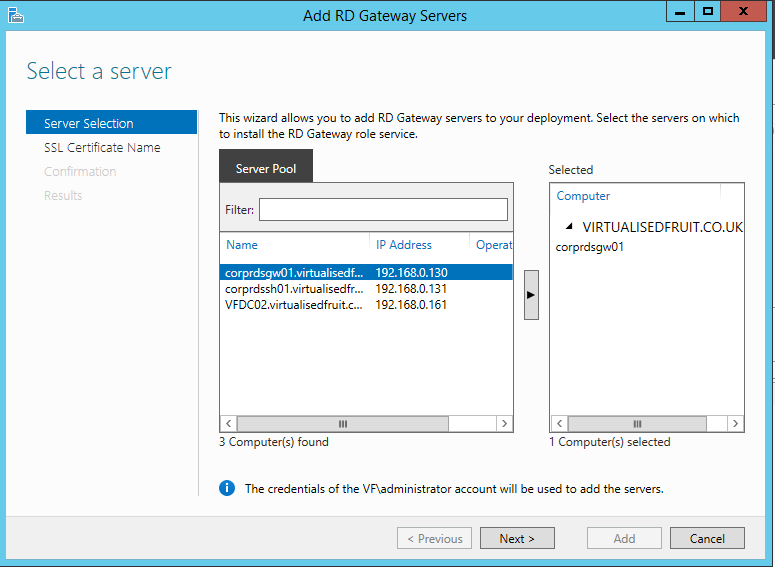
In here select your RDS gateway server
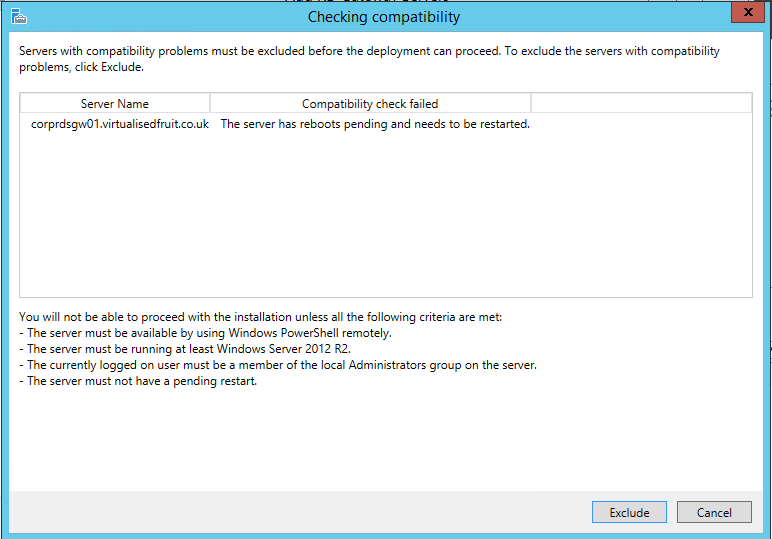
You may get this error if you havent rebooted
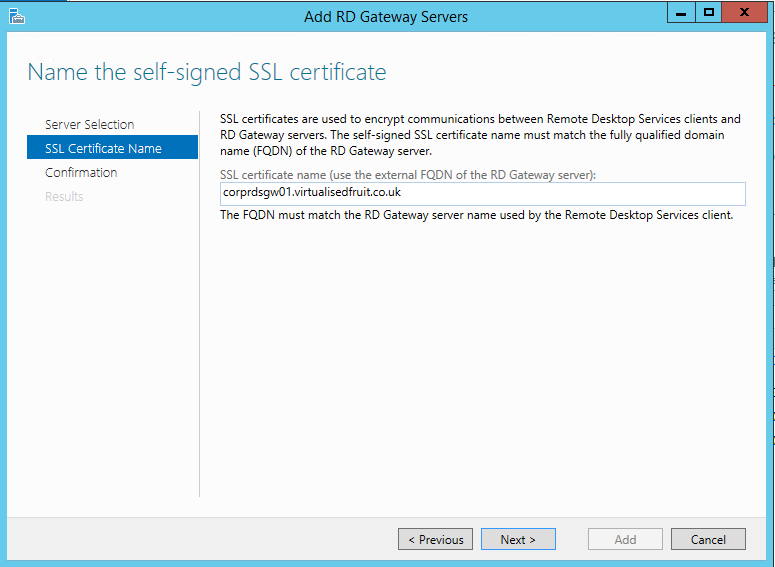
In the FQDN type in your full domain name and if you have a split zone this will be the same internally. If you want to get access outside of course you will need to use your external domain name
Confirm the next two screen
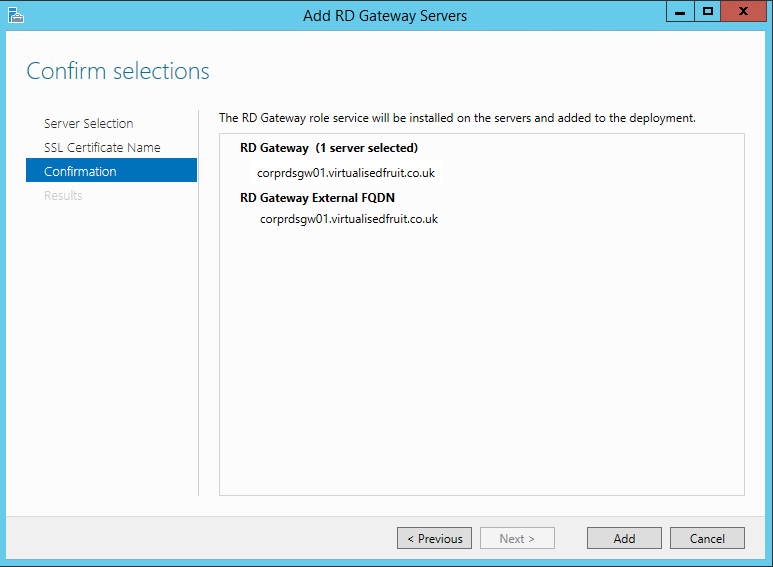
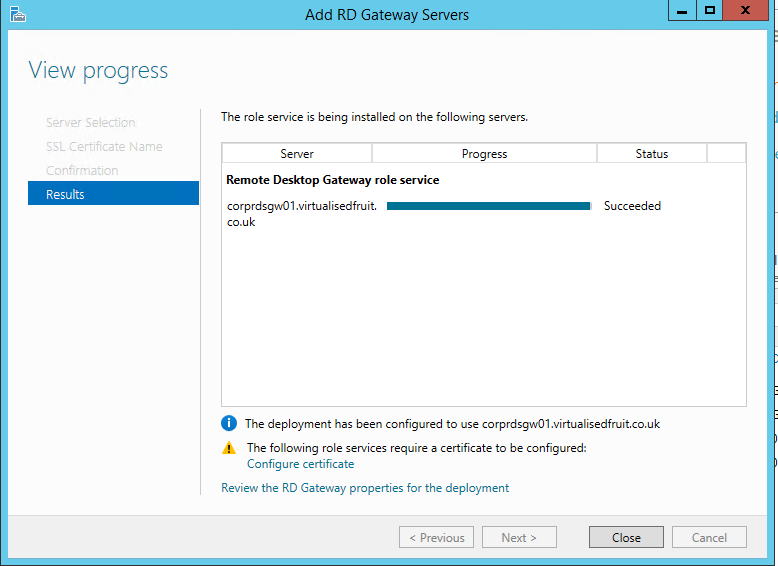
Do the same for the License server
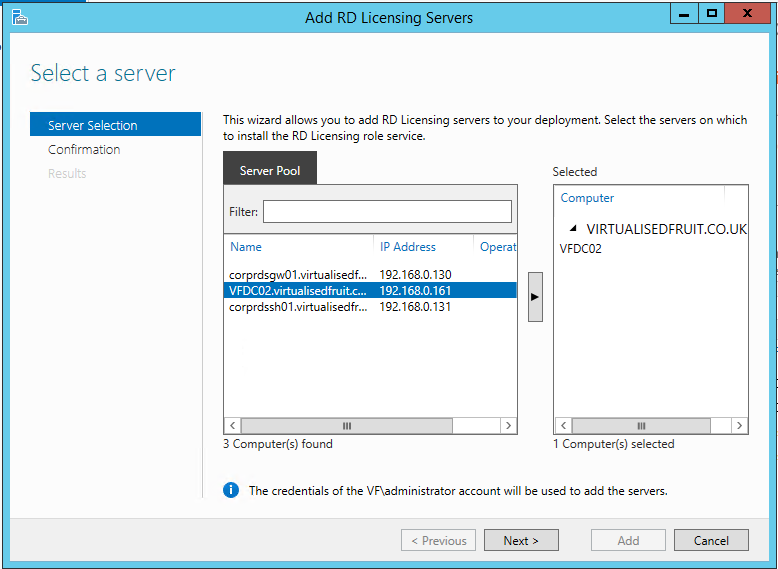
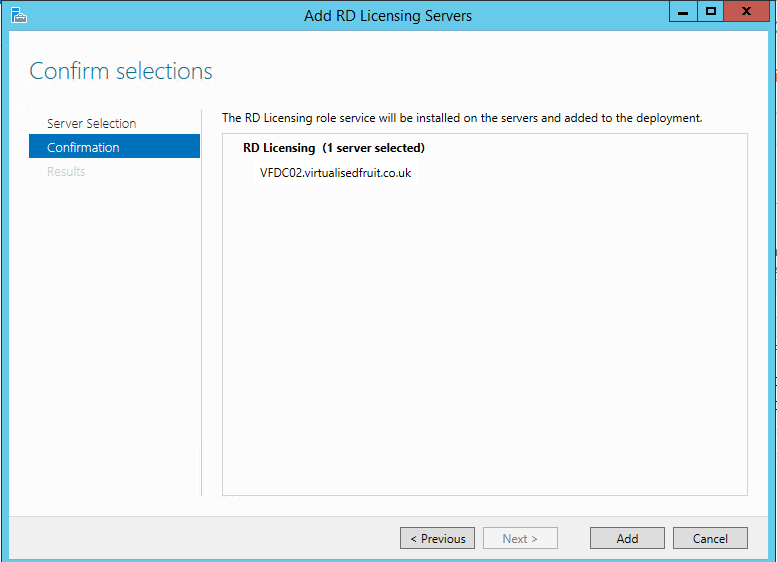
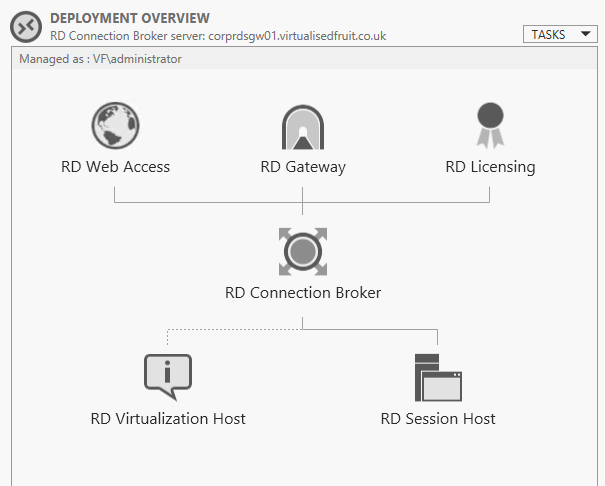
If you have done everything right you will now get the screen below
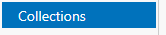
From the left bar select Collections
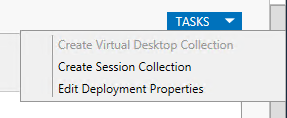
Once the menu is open select tasks and then create session collection
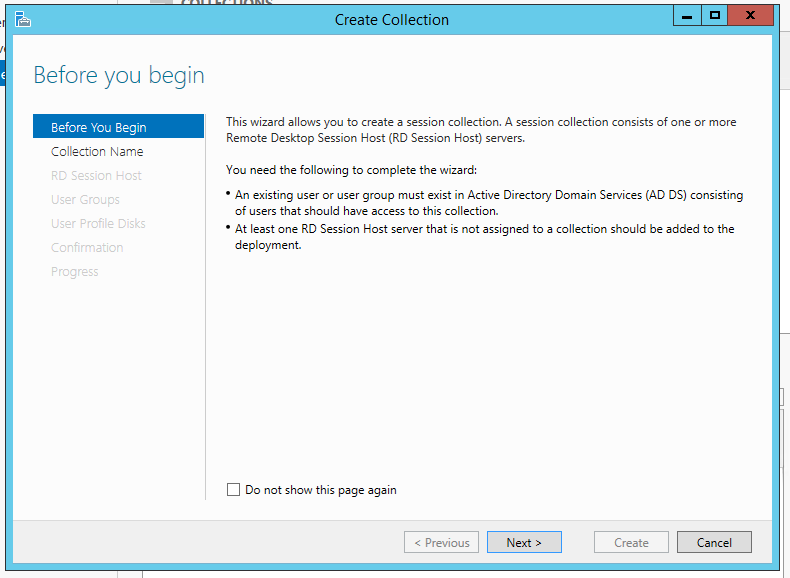
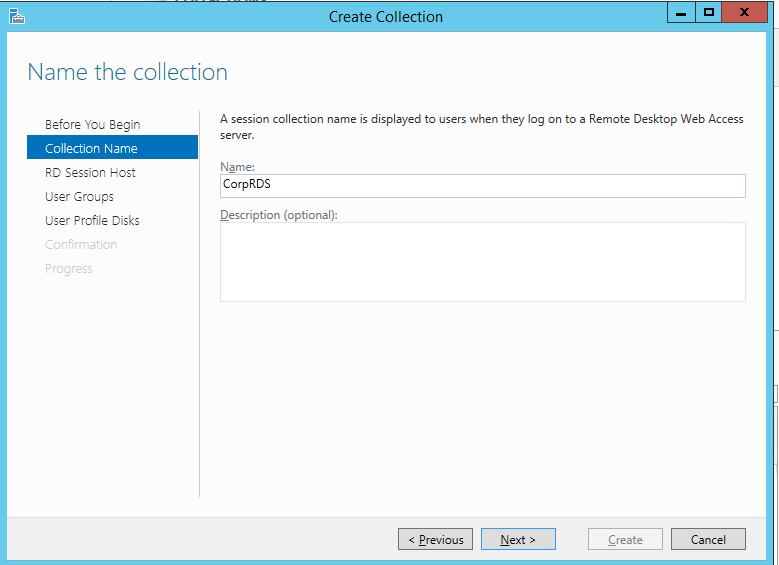
Select next to the following screen and appropriately name your RDS collection
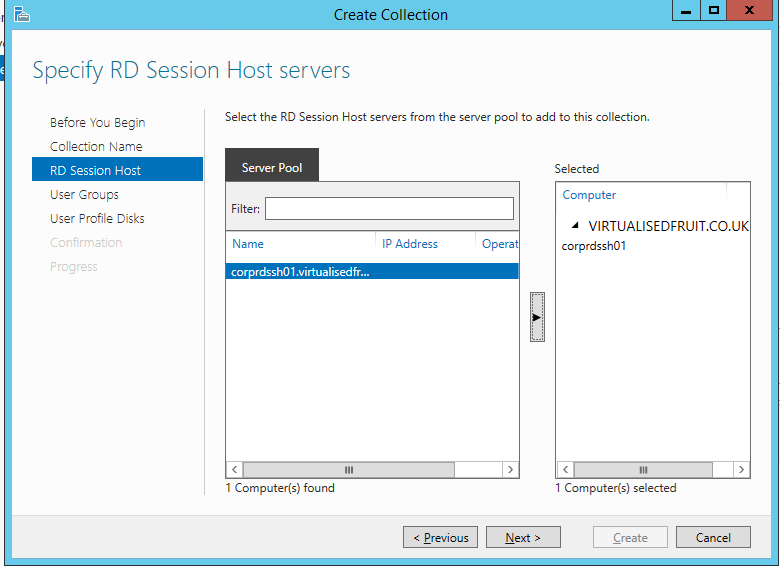
Select your session host you create earlier
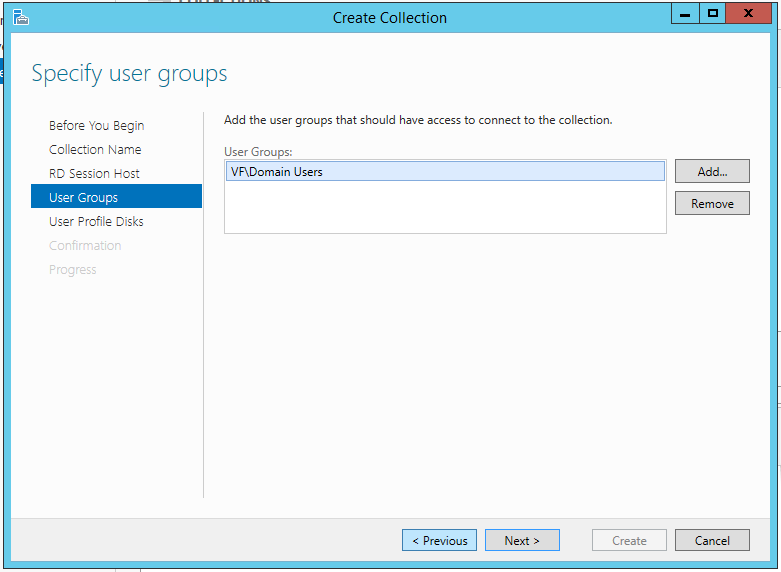
Apply a relevant group of people who you want to have access
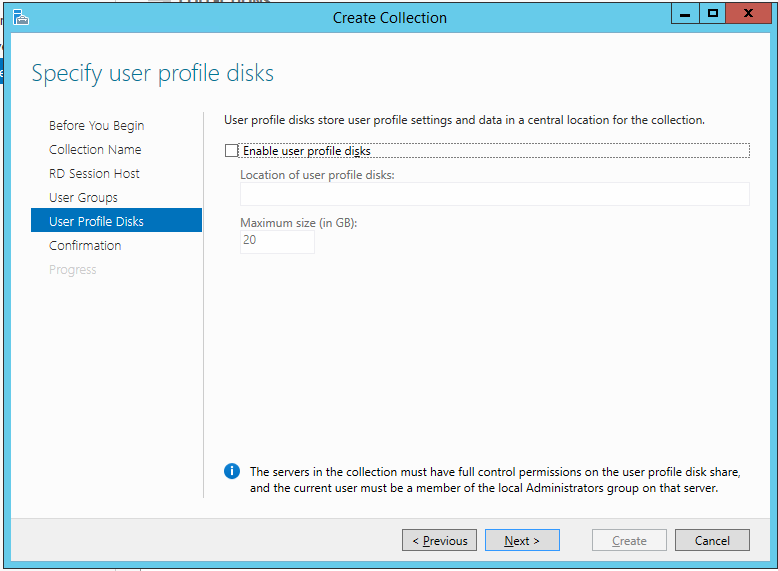
If you have a file server you can create a profile disk
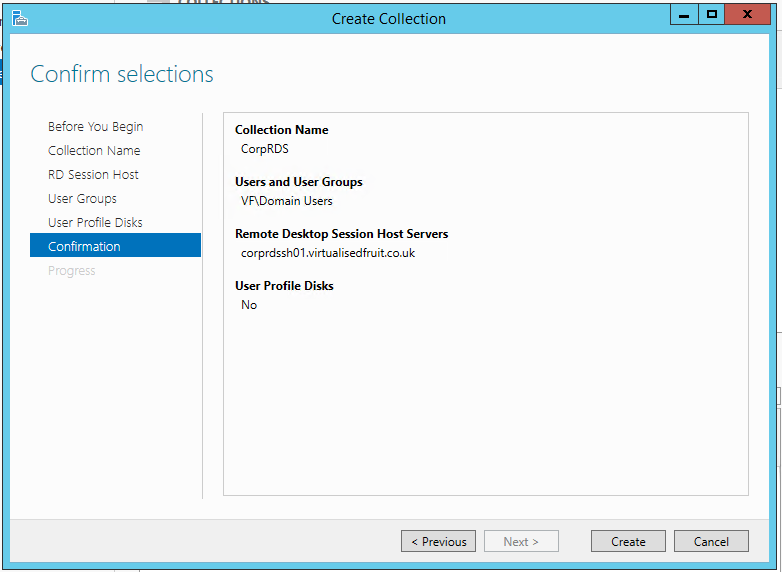
Select create to finish your collection
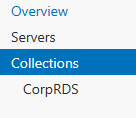
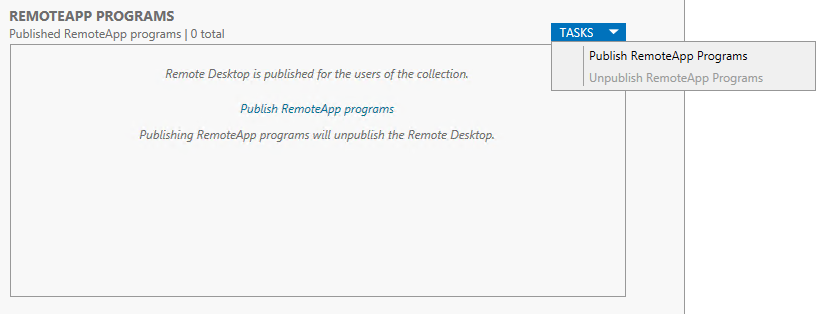
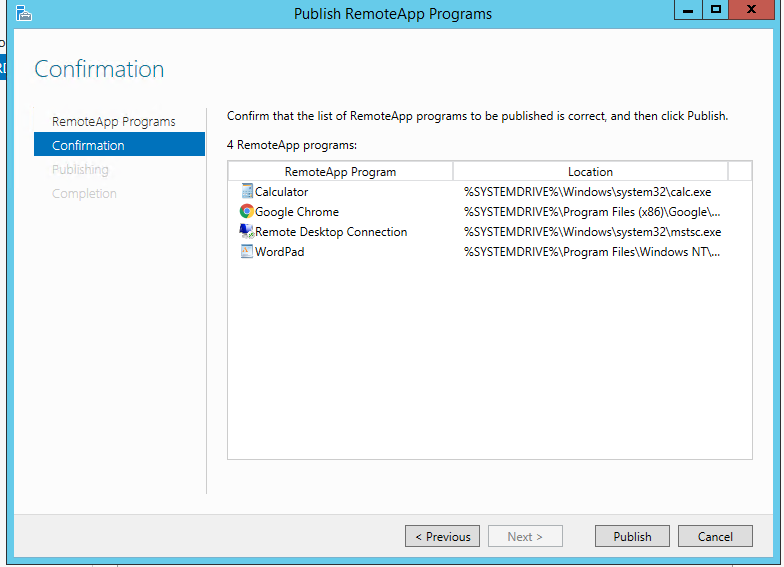
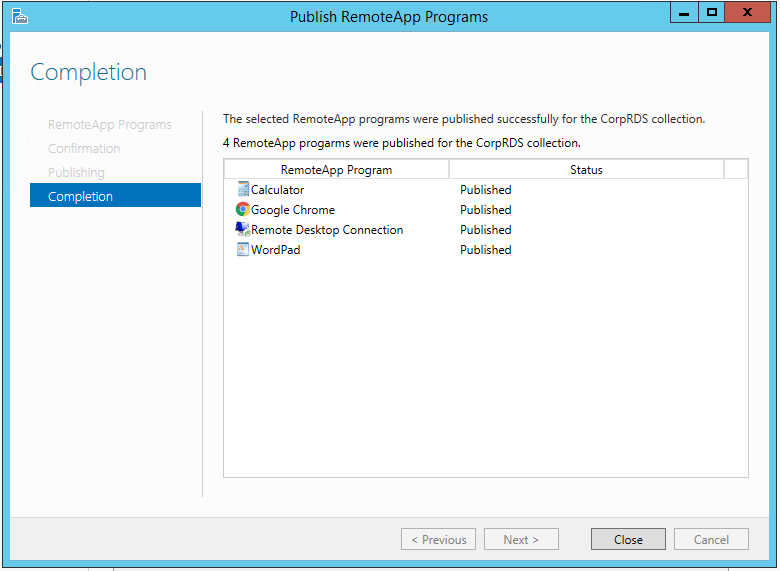
If require select your RDS group, tasks and then Publish RemoteApp
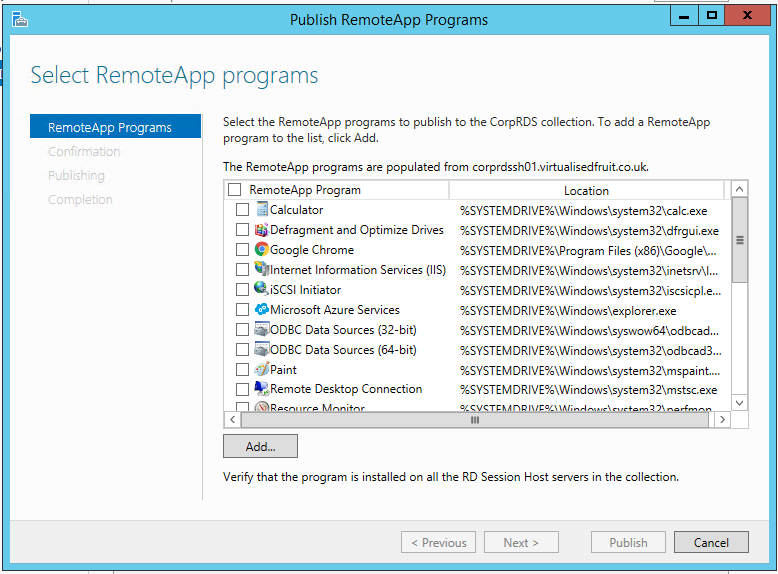
Assume you have already install the apps you want to access tick these to publish them
Confirm your selections
Testing your config
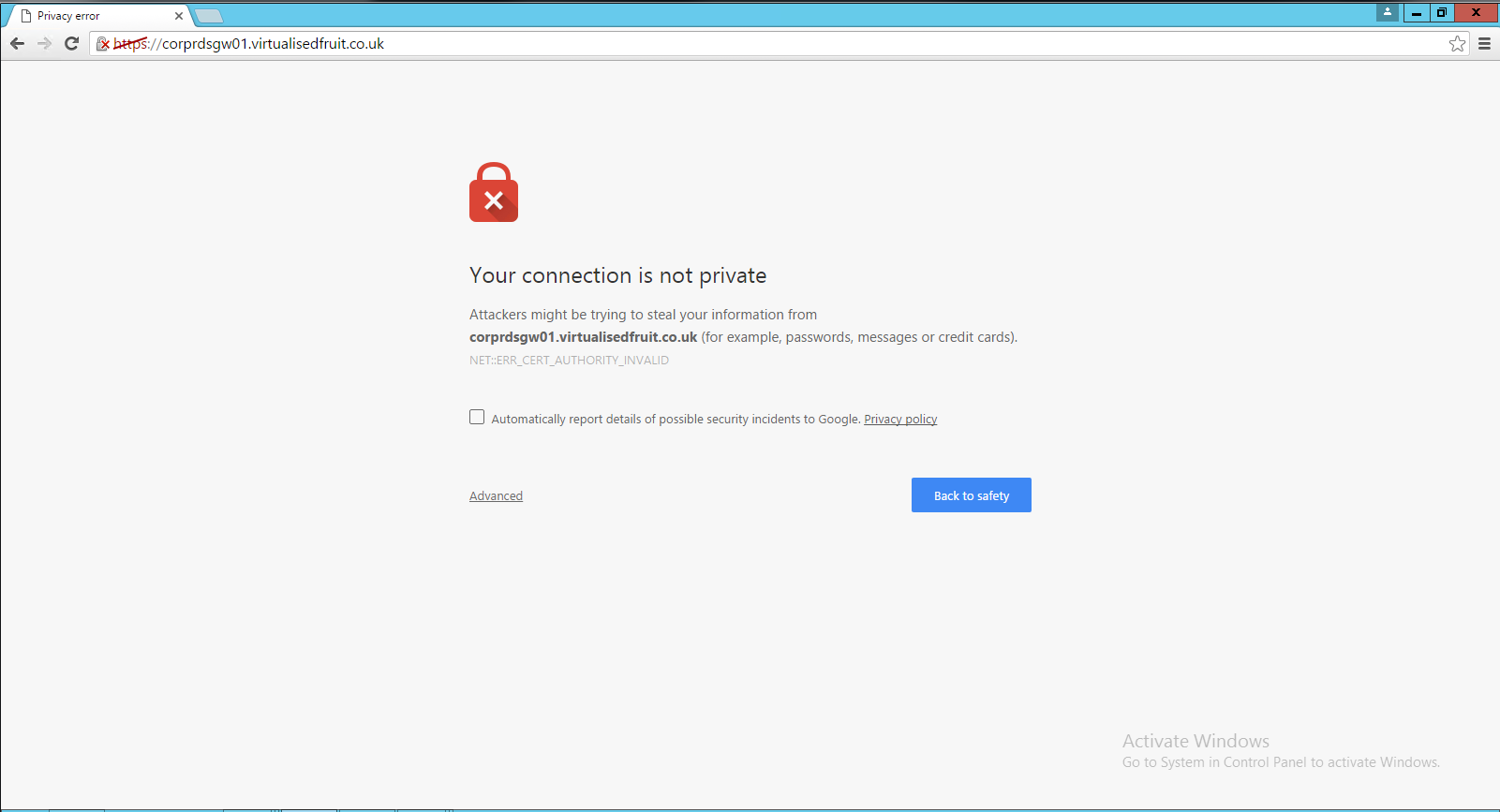
Section titled “Testing your config”To try out your system go to the following url https://yourgw.yourdomain.com/RDWeb. For now you will need to accept the certificate issue
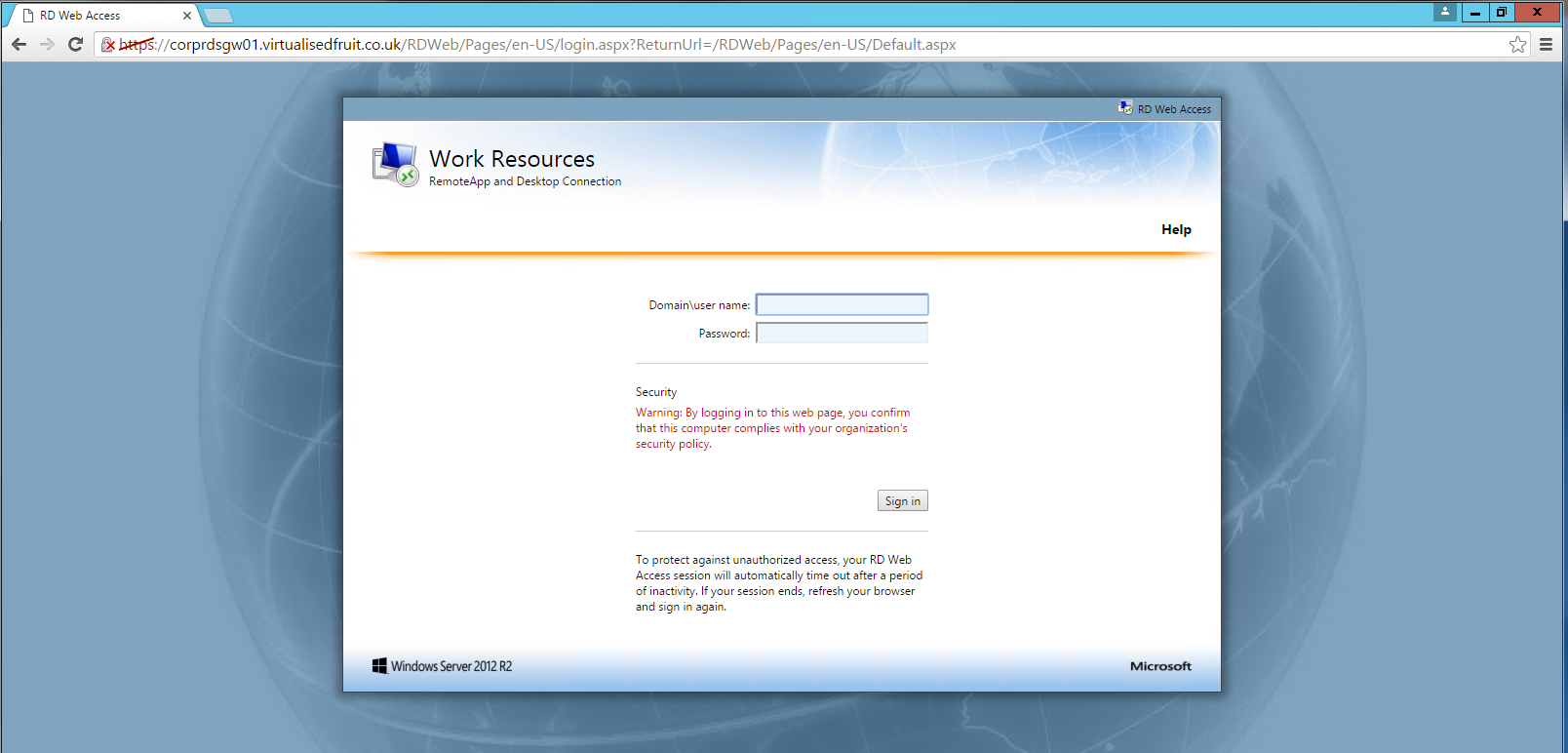
Try and log in of which you should see your apps
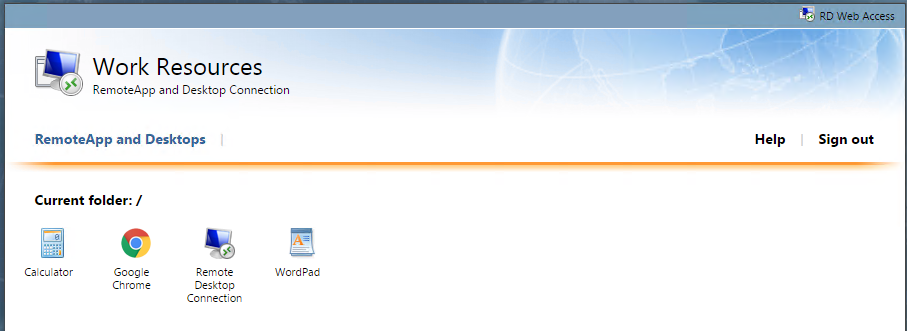
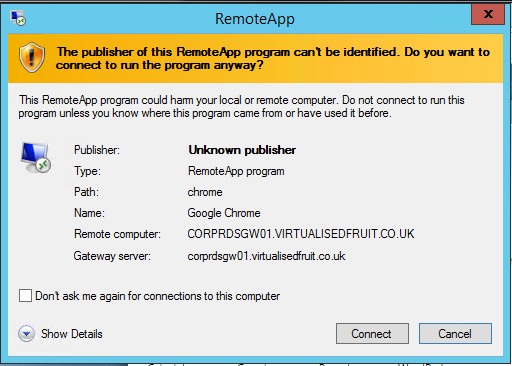
Select an app and you should now see the following screen, select connect. This is down to the fact you have not got a trusted certificate
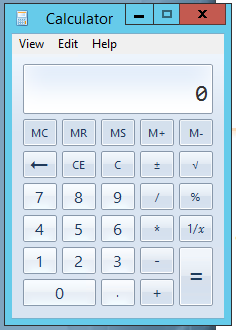
Fingers crossed your app should appear
Securing your environment
Section titled “Securing your environment”This section will be updated when the certificates section has been populated.
Exposing this to the world….
Section titled “Exposing this to the world….”I will update this shortly with a common UK router configuration as you will need to NAT some ports from the outside world.
Known Issues and Solutions
Section titled “Known Issues and Solutions”This is specifically to detail any issues with the technology being discussed, and how to resolve them. See the Intel NUC page for an example.
- You may want to deliver several services or pages on port 443
- Head over to my page about load balancing to learn more if you only have 1 public IP
- Requires several servers or understanding a DMZ
- Don’t go for best practice but it may compromise security